Image
A node that lets you select images from your input directory or upload new ones directly. Provides instant preview and handles various image formats.
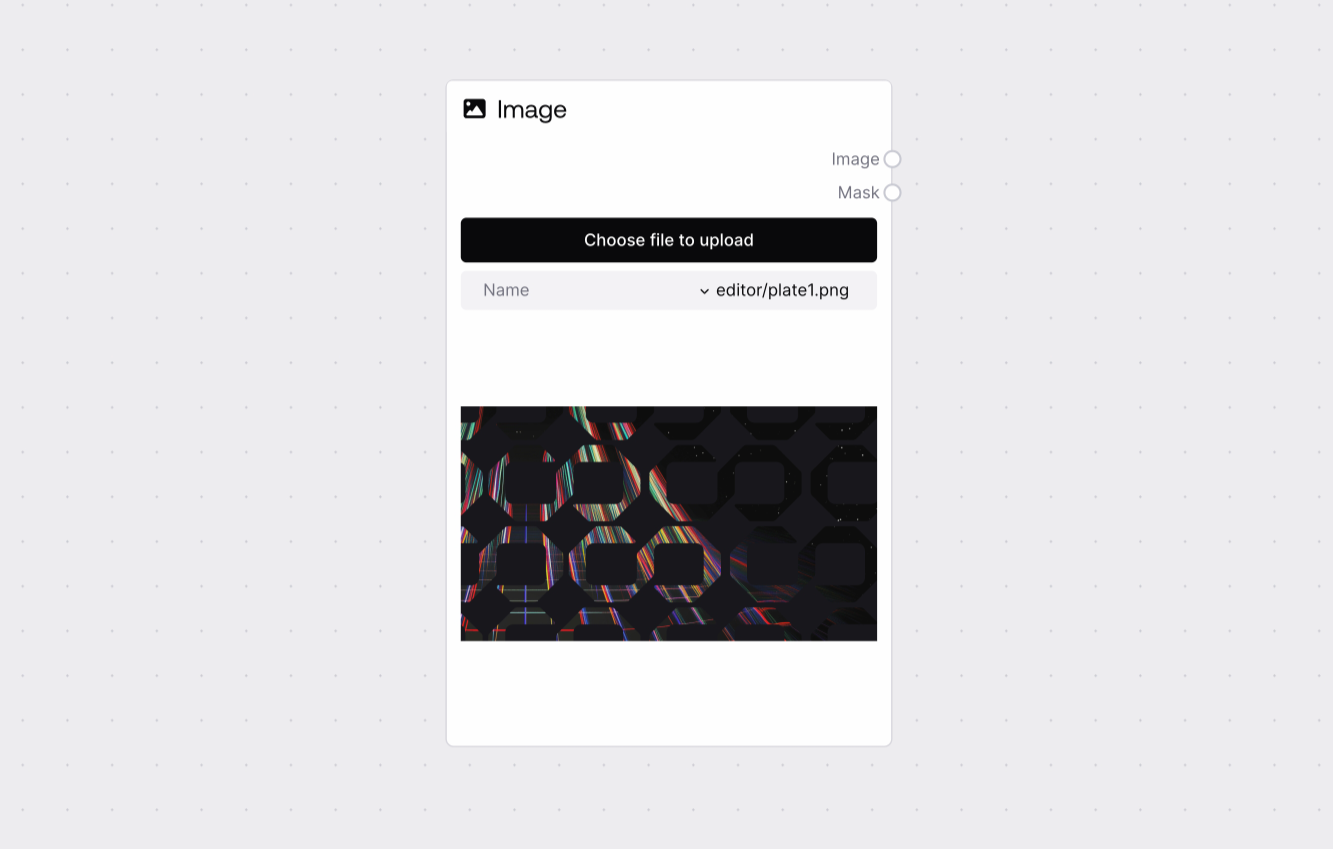
Quick Start
- Add Image Input node to your workflow
- Either:
- Select an existing image from the dropdown
- Click "Choose file to upload" for a new image
- Check the preview to confirm your selection
- Connect to image processing nodes
Basic Usage
Select Existing Image
- Choose from files in your input directory
- Preview updates automatically
- Supports common image formats
Upload New Image
- Click upload or drag & drop
- File is copied to input directory
- Available for future use
Configuration
Required Inputs
| Field | Description | Type | Example |
|---|---|---|---|
| Image | Image file selection | File Select/Upload | photo.jpg |
Outputs
| Field | Description | Example |
|---|---|---|
| IMAGE | RGB image tensor | torch.Tensor [1, H, W, 3] |
| MASK | Alpha channel mask | torch.Tensor [1, H, W] |
Best Practices
File Management
- Use descriptive filenames
- Clean up unused images
- Keep input directory organized
Image Selection
- Check preview before proceeding
- Verify image dimensions
- Consider workflow requirements
Troubleshooting
Common Issues
- No Files Listed: Add images to input directory
- Upload Failed: Check file format and size
- Preview Not Loading: Verify image isn't corrupted
Need Help?
- Check supported image formats
- Verify input directory permissions
- Review image requirements documentation